Ever felt your computer slowing down or your phone acting up? A simple system check could be the game-changer you didn’t know you needed. Think of it as a health check-up for your tech—essential, preventive, and powerful.



What Is a System Check and Why It Matters

A system check is a comprehensive evaluation of your device’s hardware, software, and overall performance. Whether it’s a laptop, smartphone, or server, running a system check helps identify potential issues before they escalate into major problems. It’s not just about fixing errors—it’s about ensuring optimal functionality and longevity.
The Core Definition of System Check
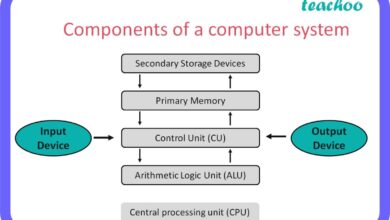
At its most basic level, a system check refers to the process of verifying that all components of a computing system are functioning correctly. This includes checking the CPU, memory, storage, operating system, drivers, and network connectivity. It’s like a diagnostic scan for your digital ecosystem.
According to Computer Hope, a system check can be automated or manual, depending on the tools available and the user’s technical expertise. The goal remains the same: to ensure reliability and performance.
Why Every User Needs Regular System Checks
Imagine driving a car without ever checking the oil or tire pressure. That’s essentially what you’re doing if you never perform a system check on your devices. Over time, software glitches, fragmented files, malware, and outdated drivers accumulate, degrading performance.
- Prevents unexpected crashes and data loss
- Improves speed and responsiveness
- Extends the lifespan of your hardware
- Enhances security by detecting vulnerabilities
“A system check isn’t just maintenance—it’s digital self-defense.”
The 7 Essential Steps of a Complete System Check
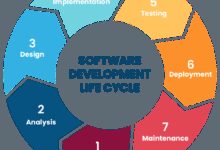
Conducting a thorough system check doesn’t have to be intimidating. Follow this proven 7-step framework to keep your devices running like new. Each step targets a critical aspect of system health, from hardware diagnostics to software optimization.
Step 1: Boot-Time Performance Analysis
The first sign of a struggling system is slow startup. During a system check, analyzing boot-time performance reveals which programs are hogging resources right from the get-go.
On Windows, use the Task Manager > Startup tab to disable unnecessary applications. On macOS, go to System Settings > Users & Groups > Login Items. For advanced insights, tools like CCleaner or Malwarebytes offer boot-time analytics.
- Identify resource-heavy startup apps
- Disable non-essential auto-launch programs
- Monitor boot duration before and after optimization
Step 2: Hardware Diagnostics and Health Monitoring
Your device’s physical components need attention too. A system check should include hardware diagnostics to assess the health of your hard drive, RAM, battery, and CPU temperature.
For hard drives, tools like HD Sentinel or CrystalDiskInfo provide S.M.A.R.T. (Self-Monitoring, Analysis, and Reporting Technology) data. This helps predict drive failure before it happens.
RAM issues can be tested using Windows Memory Diagnostic or MemTest86. Overheating CPUs? Use GPU-Z or HWMonitor to track thermal performance.
“Hardware failure often starts silently—system check tools are your early warning system.”
Step 3: Software and OS Integrity Verification
Corrupted system files can cause crashes, freezes, and strange behavior. A critical part of any system check is verifying the integrity of your operating system.
On Windows, run sfc /scannow in Command Prompt (Admin) to scan and repair protected system files. For deeper issues, use DISM /Online /Cleanup-Image /RestoreHealth to repair the Windows image.
macOS users can utilize First Aid in Disk Utility to verify and repair disk permissions. Linux distributions often include built-in tools like fsck for filesystem checks.
- Run built-in OS repair utilities
- Check for missing or corrupted DLLs and libraries
- Validate digital signatures of core system files
System Check Tools: Best Free and Paid Options
Not all system check tools are created equal. Some are lightweight and user-friendly, while others offer deep diagnostics for advanced users. Choosing the right tool depends on your needs, device type, and technical comfort level.
Top Free System Check Tools
For most users, free tools provide more than enough functionality for regular maintenance.
- Windows Built-in Tools: Event Viewer, Resource Monitor, and Performance Monitor offer deep insights without installing anything.
- CCleaner (Free Version): Cleans junk files, manages startup programs, and checks for software updates.
- Speccy: Provides detailed hardware information, including real-time temperature monitoring.
- Malwarebytes Free: Scans for malware and potentially unwanted programs during a system check.
These tools are excellent for basic system check routines and are trusted by millions worldwide.
Premium Tools with Advanced Features
If you’re managing business systems or high-performance machines, investing in premium tools pays off.
- Norton Utilities Premium: Offers disk optimization, registry repair, and performance tuning.
- Ashampoo WinOptimizer: Includes over 60 tools for system tuning, privacy protection, and automation.
- MacKeeper (for macOS): Combines system check, cleanup, and security features in one suite.
Premium tools often include real-time monitoring, automated scheduling, and cloud-based reporting—features that save time and improve accuracy during a system check.
When to Perform a System Check: Timing and Frequency
Knowing when to run a system check is just as important as knowing how. Too infrequent, and problems go unnoticed. Too often, and you waste time on unnecessary scans.
Recommended Frequency Based on Usage
Your usage pattern should dictate how often you perform a system check.
- Light Users (email, browsing): Once every 3 months
- Regular Users (work, streaming, office apps): Monthly
- Power Users (gaming, video editing, development): Bi-weekly or weekly
- Business/Enterprise Systems: Weekly automated checks with real-time monitoring
Automating system checks using task schedulers or third-party tools ensures consistency without manual effort.
Trigger-Based System Checks
Beyond routine checks, certain events should trigger an immediate system check:
- After installing new software or drivers
- Following a major OS update
- When experiencing unexplained crashes or slowdowns
- After connecting to unsecured networks
- Before and after transferring sensitive data
“A system check after an OS update can prevent compatibility nightmares.”
Common System Check Errors and How to Fix Them
Even with the best tools, system checks can reveal errors that confuse users. Understanding common issues helps you respond effectively instead of panicking.
Hard Drive S.M.A.R.T. Warnings
One of the most critical alerts during a system check is a S.M.A.R.T. warning from your hard drive. This indicates potential failure.
If you see messages like “Imminent Drive Failure” or “Reallocated Sector Count High,” act immediately:
- Back up all data to an external drive or cloud storage
- Run a full disk scan using manufacturer tools (e.g., Seagate SeaTools, WD Data Lifeguard)
- Replace the drive if warnings persist
Ignoring S.M.A.R.T. warnings is a leading cause of permanent data loss.
High Memory Usage by System Process
Sometimes, a system check reveals that System or svchost.exe is using excessive RAM or CPU. This isn’t always a problem—Windows uses background processes for updates, indexing, and security.
But if usage exceeds 80% consistently:
- Open Task Manager and sort by CPU/Memory
- Check which services are active under Details tab
- Use
perfmon /resto view real-time resource usage - Disable unnecessary services via Services.msc
If the issue persists, run a malware scan—some viruses disguise themselves as system processes.
System Check for Different Devices: PC, Mac, Mobile, and Servers
A one-size-fits-all approach doesn’t work. Each device type requires a tailored system check strategy.
Windows PC System Check
Windows offers a robust set of built-in tools for system check procedures.
- Run sfc /scannow and DISM commands
- Use Performance Monitor to track long-term trends
- Check Event Viewer for error logs
- Update drivers via Device Manager or manufacturer websites
Third-party tools like AIDA64 provide enterprise-level diagnostics.
Mac System Check Procedures
macOS is known for stability, but regular system checks are still vital.
- Boot into Recovery Mode and run First Aid in Disk Utility
- Use Activity Monitor to check CPU, memory, and energy usage
- Verify system integrity with sudo fs_usage or log show commands
- Check for firmware updates via Apple Menu > About This Mac
Tools like Macube or OnyX offer deeper cleaning and optimization.
Mobile Device (iOS & Android) System Check
Phones and tablets also need system checks, though the process differs.
- Check storage usage and delete cached data
- Review battery health (iOS: Settings > Battery > Battery Health)
- Update OS and apps regularly
- Use built-in diagnostics (e.g., Android’s Phone Info or iOS Diagnostic & Usage)
- Reset network settings if connectivity issues arise
For Android, apps like Device Info HW or Phone Check provide detailed hardware insights.
Server System Check Best Practices
Servers demand the highest level of scrutiny during a system check.
- Monitor uptime and response times with tools like Nagios or Zabbix
- Check RAID array health and backup status
- Review security logs and firewall rules
- Validate SSL certificates and domain configurations
- Perform load testing to simulate peak traffic
Automated scripts and monitoring dashboards are essential for enterprise-level system checks.
Automating Your System Check Routine
Manual system checks are effective, but automation ensures consistency and saves time.
Using Task Scheduler (Windows)
Windows Task Scheduler lets you automate system check tasks like disk cleanup, virus scans, and log reviews.
- Create a task to run
cleanmgrweekly - Schedule
sfc /scannowto run monthly - Automate malware scans with PowerShell scripts
Example: Create a batch file with diagnostic commands and schedule it to run during off-hours.
Automating on macOS with cron and launchd
macOS uses launchd and cron for automation.
- Use
launchctlto schedule scripts at boot or login - Set up
cronjobs for periodic maintenance (e.g., weekly disk checks) - Automate backups with
tmutilcommands
Third-party apps like LaunchControl make managing these tasks easier.
Third-Party Automation Tools
For cross-platform or enterprise environments, consider:
- AutoIt (Windows scripting)
- Ansible (server automation)
- IFTTT or Zapier for cloud-based triggers
“Automation turns system check from a chore into a seamless habit.”
Pro Tips for Maximizing System Check Effectiveness
Even experienced users can miss key details. These pro tips will elevate your system check game.
Keep a System Check Log
Document every system check: date, tools used, findings, and actions taken. This log helps track trends and identify recurring issues.
- Use a spreadsheet or dedicated app like Evernote
- Note temperature readings, boot times, and error codes
- Share logs with IT support for faster troubleshooting
Verify Tool Authenticity
Malware often disguises itself as system check software. Always download tools from official websites.
- Check digital signatures and user reviews
- Avoid cracked or pirated versions
- Use antivirus software to scan downloaded installers
Don’t Ignore Firmware Updates
Firmware is the low-level software that controls hardware. Outdated firmware can cause instability, even if the OS is up to date.
- Check motherboard BIOS/UEFI updates
- Update SSD firmware via manufacturer tools
- Ensure router and peripheral firmware are current
Always back up your system before applying firmware updates.
What is a system check?
A system check is a diagnostic process that evaluates the health and performance of a computer or device’s hardware, software, and network components. It helps detect issues early, improve speed, and prevent failures.
How often should I run a system check?
For most users, a monthly system check is sufficient. Light users can go quarterly, while power users and businesses should check bi-weekly or weekly, especially if handling critical data.
Can a system check fix a slow computer?
Yes. A system check identifies performance bottlenecks—like bloated startup programs, fragmented drives, or malware—and allows you to fix them, often restoring significant speed.
Are free system check tools safe to use?
Most reputable free tools (like CCleaner, Speccy, or built-in OS utilities) are safe. However, always download from official sources and avoid tools that prompt excessive ads or paid upgrades aggressively.
What should I do if a system check finds a hard drive error?
Immediately back up your data, run a manufacturer diagnostic tool, and consider replacing the drive. Continuing to use a failing drive risks permanent data loss.
Regular system checks are not just a technical task—they’re a smart habit for anyone who relies on technology. From identifying failing hardware to optimizing software performance, a well-executed system check safeguards your digital life. Whether you’re a casual user or an IT professional, following the 7-step framework, using the right tools, and automating routines will keep your devices running smoothly. Don’t wait for a crash to act—make system check a non-negotiable part of your tech maintenance.
Further Reading: