Welcome to the ultimate deep dive into the world of the system board. Often called the motherboard, this crucial component is the beating heart of every computer. Let’s explore its magic, mechanics, and mysteries in a way that’s both insightful and easy to grasp.




What Is a System Board? The Core of Your Computer

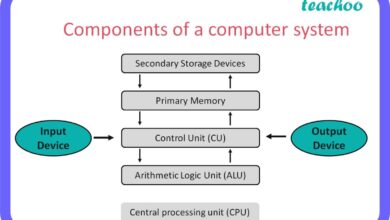
The system board, commonly known as the motherboard, is the primary printed circuit board (PCB) in any computing device. It serves as the central hub that connects all hardware components—CPU, RAM, storage, GPU, and peripherals—enabling them to communicate and function together seamlessly.
Definition and Basic Function
The system board is more than just a slab of silicon and copper; it’s an engineered ecosystem. It provides electrical connections, data pathways (buses), and power distribution to every component plugged into it. Without a functioning system board, a computer simply cannot boot or operate.
- Acts as the central communication platform for all hardware.
- Distributes power from the PSU (Power Supply Unit) to components.
- Houses critical chips like the BIOS/UEFI and chipset.
Historical Evolution of the System Board
The concept of a system board dates back to the 1960s and 1970s with early mainframes and minicomputers. However, the modern motherboard as we know it began with the IBM PC in 1981. Since then, it has evolved dramatically in size, complexity, and capability.
- Early boards were large, with discrete components and limited integration.
- The introduction of standardized form factors like AT, ATX, and microATX revolutionized compatibility.
- Today’s boards integrate Wi-Fi, Bluetooth, advanced power delivery, and AI-enhanced tuning.
“The motherboard is the unsung hero of computing—silent, unseen, but absolutely indispensable.” — Tech Analyst, Dr. Elena Torres
Key Components of a System Board
Understanding the anatomy of a system board is essential for anyone interested in building, upgrading, or troubleshooting computers. Each component plays a vital role in the overall performance and stability of the system.
CPU Socket and Chipset
The CPU socket is the physical interface where the processor is installed. It must match the CPU’s pin configuration (e.g., LGA 1700 for Intel or AM5 for AMD). The chipset, usually located near the CPU, acts as a traffic controller, managing data flow between the CPU, memory, storage, and peripherals.
- Different chipsets support varying features like PCIe lanes, USB ports, and overclocking.
- Examples: Intel Z790, AMD X670E.
- The chipset determines upgrade paths and future-proofing.
RAM Slots and Memory Support
RAM (Random Access Memory) slots are where memory modules are installed. Most modern system boards support DDR4 or DDR5 memory, with varying speeds and capacities. The number of slots and supported memory type directly impact multitasking and performance.
- Dual-channel or quad-channel configurations enhance bandwidth.
- Maximum supported RAM can range from 64GB to 128GB or more.
- Memory compatibility is crucial—always check the QVL (Qualified Vendor List).
Expansion Slots (PCIe)
Peripheral Component Interconnect Express (PCIe) slots allow for the addition of graphics cards, NVMe SSDs, sound cards, and other expansion devices. The number and generation (e.g., PCIe 4.0, 5.0) of slots affect upgrade potential and data transfer speeds.
- PCIe x16 slots are typically used for GPUs.
- PCIe x1 slots are for smaller add-ons like Wi-Fi cards.
- Newer boards support M.2 slots via PCIe for ultra-fast SSDs.
Types of System Boards and Form Factors
Not all system boards are created equal. They come in various sizes and configurations, known as form factors, each designed for specific use cases—from compact home theater PCs to high-end gaming rigs.
ATX: The Standard Workhorse
Advanced Technology eXtended (ATX) is the most common form factor for desktop computers. Measuring 12 x 9.6 inches, it offers ample space for multiple PCIe slots, RAM slots, and cooling solutions.
- Ideal for mid-tower and full-tower cases.
- Supports high-end components and extensive customization.
- Widely supported by power supplies and cases.
Micro-ATX: Compact Yet Capable
Measuring 9.6 x 9.6 inches, micro-ATX boards are smaller than ATX but retain many of the same features. They typically have fewer expansion slots but are perfect for budget builds or space-constrained setups.
- Cost-effective and energy-efficient.
- Compatible with most ATX cases.
- Great for office PCs and basic gaming systems.
Mini-ITX: Small but Mighty
At 6.7 x 6.7 inches, Mini-ITX is the smallest mainstream form factor. Despite its size, it can support powerful CPUs and GPUs, making it ideal for compact builds like HTPCs (Home Theater PCs) or portable gaming rigs.
- Limited to one PCIe slot and two RAM slots.
- Requires specialized small-form-factor cases.
- Popular in DIY NAS (Network Attached Storage) builds.
How a System Board Works: The Communication Backbone
The system board is not just a physical platform—it’s a dynamic network of electrical pathways and protocols that enable real-time communication between components. Understanding how it works reveals the elegance of modern computing.
Data Buses and Signal Pathways
Data buses are the highways of the system board, carrying information between the CPU, memory, and peripherals. There are several types:
- Front-Side Bus (FSB): Older systems used this to connect CPU and northbridge.
- Direct Media Interface (DMI): Intel’s interconnect between CPU and chipset.
- Infinity Fabric: AMD’s high-speed interconnect for CPU and chipset communication.
These pathways determine how quickly data moves, directly impacting system responsiveness.
Power Delivery and Voltage Regulation
The VRM (Voltage Regulator Module) is a critical part of the system board. It converts the 12V from the PSU into the precise voltages needed by the CPU and other components. High-quality VRMs ensure stable performance, especially during overclocking.
- VRMs consist of phases—more phases mean better power delivery and less heat.
- Top-tier boards feature 12+2 phase VRMs for enthusiast CPUs.
- Poor VRMs can lead to throttling or system instability.
BIOS/UEFI: The Board’s Operating System
The BIOS (Basic Input/Output System) or its modern counterpart, UEFI (Unified Extensible Firmware Interface), is firmware stored on a chip on the system board. It initializes hardware during boot and provides a setup interface for configuration.
- UEFI offers a graphical interface, faster boot times, and support for drives larger than 2TB.
- Allows overclocking, fan control, and boot order customization.
- Firmware updates can add new features or fix security vulnerabilities.
Choosing the Right System Board for Your Needs
Selecting the right system board is a critical step in building or upgrading a PC. It affects compatibility, performance, and future upgrade potential. Here’s how to make the best choice.
Compatibility with CPU and RAM
The system board must be compatible with your chosen CPU socket and memory type. For example, an AMD Ryzen 7000 series CPU requires an AM5 socket and DDR5 RAM. Always double-check compatibility lists from manufacturers.
- Intel and AMD use different sockets—never interchangeable.
- Some older boards support both DDR4 and DDR5 via dual slots (rare).
- Use tools like PCPartPicker to verify compatibility.
Expansion and Future-Proofing
Consider your future needs. Will you add a second GPU? More SSDs? A Wi-Fi card? Choose a board with enough PCIe slots, M.2 connectors, and USB headers.
- PCIe 5.0 support ensures compatibility with next-gen GPUs and SSDs.
- USB 3.2 Gen 2×2 (20Gbps) ports are ideal for fast external storage.
- Onboard Wi-Fi 6E and Bluetooth 5.3 are becoming standard.
Budget vs. Performance Trade-offs
High-end boards offer premium features like robust VRMs, RGB lighting, and AI tuning, but they come at a price. For basic users, a mid-range board may be more than sufficient.
- Entry-level boards: $80–$120, suitable for office or light gaming.
- Mid-range: $150–$250, ideal for 1080p/1440p gaming.
- Premium: $300+, built for overclocking and 4K gaming.
Troubleshooting Common System Board Issues
Even the most reliable system boards can encounter problems. Recognizing symptoms and knowing how to diagnose them can save time, money, and frustration.
Power-On Failures and No-POST
If your computer doesn’t power on or fails to POST (Power-On Self-Test), the system board could be at fault. However, always rule out the PSU, RAM, and CPU first.
- Check for visible damage like burnt capacitors or bulging components.
- Listen for beep codes or check LED debug lights on the board.
- Try a minimal boot: CPU, one stick of RAM, and integrated graphics.
Overheating and VRM Throttling
Poor airflow or inadequate cooling can cause VRMs to overheat, leading to performance throttling. High-end boards often include heatsinks on VRMs to prevent this.
- Monitor VRM temperatures using tools like HWiNFO.
- Ensure case fans are properly positioned for airflow.
- Consider adding a small fan directed at the VRM area.
BIOS Corruption and Recovery
A failed BIOS update or power interruption during flashing can corrupt the firmware. Many modern boards have dual BIOS or recovery features.
- Use Q-Flash Plus or similar tools to reflash without CPU or RAM.
- Always download BIOS updates from the official manufacturer site.
- Never interrupt a BIOS update—use a UPS if possible.
Future Trends in System Board Technology
The system board is not static—it evolves with advancements in computing. From AI integration to modular designs, the future promises exciting innovations.
AI-Optimized Motherboards
Leading manufacturers like ASUS and MSI are integrating AI into system boards for automatic tuning of CPU, GPU, and fan speeds. AI overclocking and noise reduction are becoming standard features.
- ASUS AI Overclocking adjusts settings based on cooling and silicon quality.
- MSI’s AI Cooling dynamically manages fan curves.
- AI-powered diagnostics can predict hardware failures.
Modular and Customizable Designs
Future boards may adopt modular designs, allowing users to add or remove components like Wi-Fi modules, audio DACs, or extra USB controllers.
- Reduces waste by enabling upgrades without replacing the entire board.
- Could lead to standardized expansion docks.
- Still in early R&D but promising for sustainability.
Enhanced Connectivity and 6G Integration
As internet speeds increase, system boards are incorporating next-gen connectivity. Wi-Fi 7 and future 6G mobile integration could become standard, enabling seamless cloud computing and low-latency gaming.
- Wi-Fi 7 offers speeds up to 40 Gbps and ultra-low latency.
- 6G could enable direct board-to-network communication.
- Integrated 5G/6G modems may replace traditional Ethernet in some devices.
What is the difference between a system board and a motherboard?
There is no practical difference—the terms are used interchangeably. “System board” is a more technical term, while “motherboard” is the common name used by consumers and retailers.
Can a system board be upgraded?
Yes, but it depends on compatibility. You can upgrade to a new system board if it supports your CPU (or you’re upgrading the CPU too), fits your case, and works with your PSU. Always check socket, chipset, and form factor compatibility.
How long does a system board last?
A high-quality system board can last 7–10 years under normal use. Factors like heat, power surges, and component quality affect lifespan. Proper cooling and a good PSU extend longevity.
What causes a system board to fail?
Common causes include power surges, overheating, liquid damage, physical impact, and capacitor degradation. Using a surge protector and maintaining good airflow can prevent many issues.
Is the system board the most important part of a computer?
While the CPU and GPU often get more attention, the system board is arguably the most important because it enables all components to work together. A high-end CPU on a poor board will underperform, while a well-chosen board maximizes system potential.
The system board is the silent orchestrator of your computer’s performance. From its intricate circuitry to its role in enabling cutting-edge technology, it deserves recognition as the foundation of modern computing. Whether you’re a builder, gamer, or IT professional, understanding the system board empowers you to make smarter decisions and get the most out of your hardware. As technology advances, so too will the capabilities of this essential component—ushering in a new era of speed, efficiency, and intelligence.
Further Reading: